
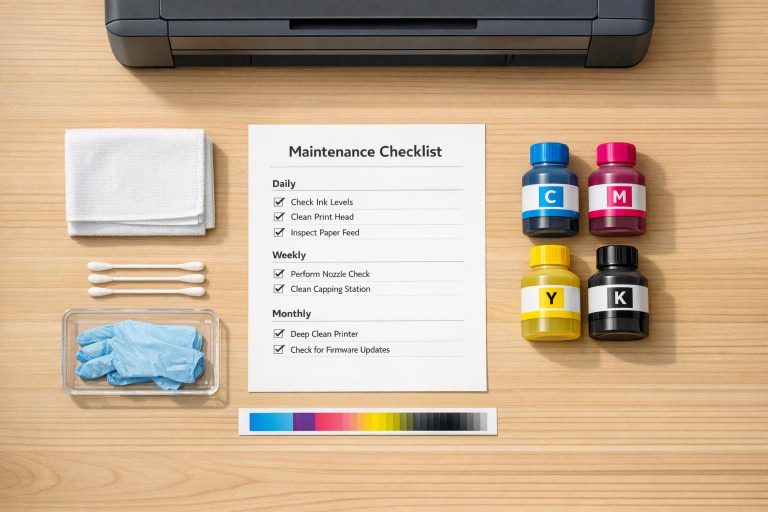
Sublimation printers need regular care to avoid clogs, downtime, and costly repairs. Here’s a quick guide to keep your system running smoothly:
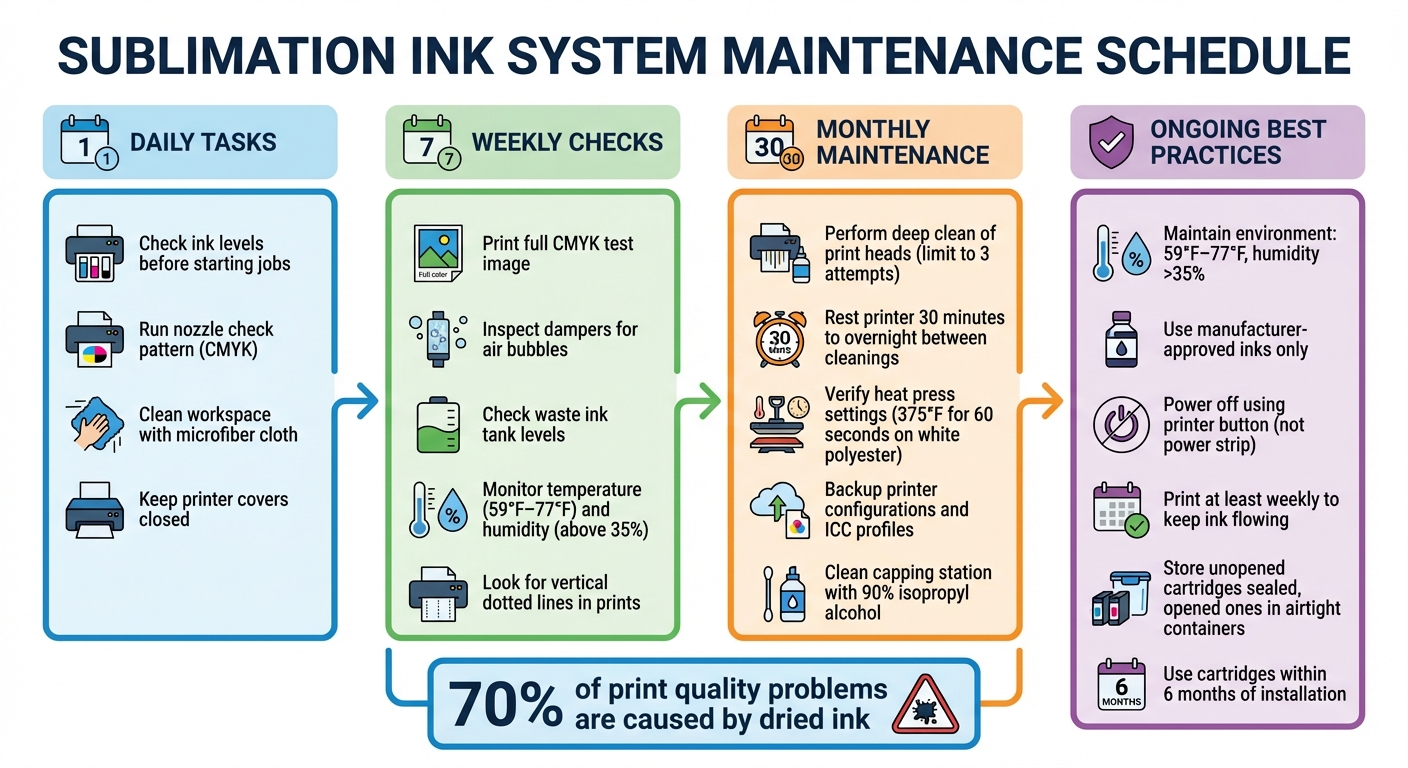
- Daily Tasks: Check ink levels, run nozzle checks, and clean the workspace to prevent dust buildup.
- Weekly Checks: Print a CMYK test image, inspect dampers for air bubbles, and monitor waste ink tanks.
- Monthly Maintenance: Deep clean print heads, verify heat press settings, and back up printer configurations.
- Environment Control: Maintain temperatures between 59°F–77°F and humidity above 35% to prevent ink drying or steam issues.
- Use High-Quality Inks: Stick to manufacturer-approved inks to avoid clogs and maintain warranty.
- Proper Shutdown: Always power off using the printer’s button to protect the print head.
Consistent maintenance ensures better print quality, fewer interruptions, and a longer printer lifespan. Follow these steps to protect your investment and keep production running smoothly.
Sublimation Printer Maintenance Schedule: Daily, Weekly, and Monthly Tasks
Daily Maintenance Tasks
Check Ink Levels
Always check your printer’s ink levels before starting a job. Running low on ink can cause streaks and degrade print quality. If your printer uses refillable tanks, keep an eye on the ink levels visually to avoid interruptions during production.
"Whenever possible, ensure uninterrupted printing sessions by checking ink levels, paper availability, and other necessary supplies before starting a print job." – Fedar
Many manufacturers offer software tools to make this process easier. For example, EPSON Status Monitor 3 provides detailed ink level readings and alerts when cartridges need replacing. Once you’ve confirmed that ink levels are sufficient, perform a nozzle check to ensure smooth ink flow.
Run a Nozzle Check
Start your workday by printing a nozzle check pattern. This quick test helps confirm that all color channels – Cyan, Magenta, Yellow, and Black – are functioning properly. Look closely at the grid or staggered lines for any gaps, missing sections, or faint areas that might signal a blockage.
You can initiate a nozzle check through the printer’s LCD menu (Home > Setup > Maintenance > Printhead Nozzle Check) or through your computer’s printing preferences. If the pattern shows uninterrupted lines, you’re good to go. But if there are gaps, run a head cleaning cycle and perform another nozzle check to ensure the issue is resolved. For stubborn clogs, let the printer rest for 30 minutes to a few hours to allow air bubbles to settle and restore proper ink flow.
Clean the Work Area
A clean workspace is essential for maintaining print quality. Dust on the print head can lead to clogs and faded prints. Use a dry microfiber cloth to wipe down the printer and surrounding surfaces daily. For the cartridge access panel, an air-duster or dry cloth works well – just be careful to avoid touching any circuits.
Keep printer covers and paper trays closed when not in use to prevent dust and debris from entering the system. If you notice vertical dotted lines on your prints, it might be time to clean the internal rollers. Run a piece of firm paper or thin cardboard lightly dampened with a cleaning solution through the printer to remove any buildup.
Tips for Sublimation Success — Best Practices for Maintaining Your Printer
Weekly Maintenance Checks
Keep your system running smoothly with a weekly inspection routine – this can help you avoid expensive downtime and ensure consistent performance.
One key task is to print a full CMYK test image. This step keeps all color channels active and prevents ink from hardening in the print head. If your printer hasn’t been used in the past 24 hours, this weekly test becomes even more critical. As Sublimation Supplies puts it:
"Printing an image regularly (once a week minimum) that uses all of the colour channels in the head (C,M,Y,K) will keep the ink flowing through the head and maintain lubrication so that hardened ink does not settle upon your head and block nozzles".
Setting a consistent schedule for this test print can help you avoid stubborn clogs and the downtime they cause.
Next, inspect the dampers for air pockets or air locks. These small chambers between the cartridges and the print head can easily be disrupted by even a tiny air bubble. If you notice the dampers are underfilled, you may need to manually prime them with a syringe to get the ink flowing properly again. While you’re at it, check your waste ink tank or maintenance box. A full tank will stop your printer from functioning. Jimmy Lamb of Sawgrass Technologies offers a helpful reminder:
"A full tank often will stop a printer, so remember to keep a spare waste-collection tank in your shop’s inventory".
Pay attention to your prints. If you notice vertical dotted lines, it’s a sign that the spring shafts might need cleaning. Use a firm paper or ribbon dampened with water to address this issue. Printers that have been converted for sublimation tend to encounter this problem more frequently because they use 30-40% more ink compared to dedicated sublimation models.
Lastly, log the temperature and humidity in your workspace every week. This helps ensure the printer operates in optimal conditions. A digital thermometer with a built-in humidity display is a good tool for accurate monitoring.
Monthly Deep Maintenance Operations
Building on daily and weekly routines, monthly deep maintenance focuses on resolving persistent issues and refining system settings for better performance.
Perform a Deep Clean of Print Heads
Once a month, initiate a software Power Clean from your printer’s maintenance menu. Use a nozzle check to confirm whether the cleaning was effective. Limit this process to three attempts to avoid wasting ink.
Allow the printer to rest for 30 minutes to overnight between deep cleaning sessions. This pause helps air bubbles settle naturally. If the software cleaning doesn’t resolve clogs, switch to manual methods. Turn off the printer, then gently move the printhead over a lint-free cloth dampened with distilled water or cleaning solution. Let it sit for 10–15 minutes.
For stubborn clogs, you can use a syringe (needle removed) to carefully push 5–10ml of sublimation-specific cleaning fluid through the ink inlet ports. Apply gentle pressure to avoid damaging the nozzle plate. Additionally, clean the capping station and wiper system using a lint-free cloth and 90% isopropyl alcohol to prevent dried ink from contaminating the print head.
Once the cleaning process is complete, check that your heat press and color settings are still properly calibrated.
Verify Heat Press and Color Profiles
After ensuring the print heads are clear, confirm that your heat press and color profiles are properly aligned. Test the heat press settings by printing on white polyester at 375°F for 60 seconds to match the ICC profile. Fine-tune temperature, time, or pressure as needed to achieve the best color output. Double-check that your graphics software is applying the correct ICC profile.
Backup Printer Settings
To safeguard your optimized settings, always back up your printer configurations after making adjustments. Software updates often reset custom settings, which can lead to incorrect color output. As Sublimation Supplies Australia explains:
"A lot of people forget to re-install the colour profile to the device/ don’t install the printer driver, or lose settings after a software update. If your printer is printing a clear nozzle check, something has changed in your hardware/software settings that is causing the printer to have lost the ICC profile/printer settings".
Save your ICC profiles and document the recommended media settings. After any updates, verify that the correct color profile is assigned to maintain print quality.
Environmental and Operating Conditions
Your workspace environment directly affects how well sublimation ink performs. Along with routine cleaning and hardware maintenance, controlling temperature and humidity is crucial to keeping your system running smoothly. These factors play a big role in avoiding clogs and ensuring consistent print quality.
Maintain Proper Temperature and Humidity
Keeping your workspace within the recommended temperature and humidity range helps prevent ink from drying out in the nozzles. As Jimmy Lamb, Manager of Communications at Sawgrass Technologies, explains:
"The key thing to remember is to keep the ink flowing".
Too much humidity can cause moisture on the transfer paper to turn into steam during heat pressing, leading to banding. On the flip side, dry climates or heated winter spaces can make ink dry out faster, requiring more frequent maintenance. To stabilize conditions, consider using tools like an indoor moisture controller or air exhaust system. A steady environment ensures your printer operates without interruptions.
Use the Printer Regularly
Frequent use is another way to keep sublimation ink flowing properly. Aim to print at least weekly, and for integrated systems, leave them powered on so they can run automatic maintenance cycles. If you’re using an Epson wide-format printer, make sure to turn it on at least every two weeks to activate its automatic cleaning feature.
Long periods of inactivity can lead to clogged nozzles and visible banding in prints. Cori George, a craft expert at Hey Let’s Make Stuff, highlights this risk:
"If you live in a warm, dry climate or keep your heat up high in the winter, your sublimation ink may dry out more quickly. Dried sublimation ink also causes clogged print heads".
Regular use, paired with proper shutdown techniques, helps maintain nozzle performance.
Power Off the Printer Correctly
Always use the printer’s power button – not a power strip – when shutting it down. This ensures the printhead moves back to its capped position. Also, address any error messages before powering off to allow the printer to cap the printhead properly.
For integrated sublimation printers, Sawgrass recommends keeping the printer powered on at all times to enable automatic maintenance features. If you need to power it down for an extended period, make sure to turn it on every 20–25 days to cycle the internal components. Additionally, keep the waste ink bottle installed even when the printer is off, as ink residue in the tubes can still leak.
sbb-itb-4d95ad3
Waste Ink Management and Storage
Keeping up with waste ink management is just as important as regular cleaning and system checks. Properly handling waste ink helps prevent errors and downtime by ensuring that waste is consistently removed from the designated tank or maintenance box.
Monitor the Waste Ink Tank
Make it a habit to monitor your printer’s waste ink levels through its software tools. For instance, Epson printers offer the Status Monitor 3 tool, which provides real-time updates on waste ink levels and flags potential issues before they disrupt your workflow. Depending on the printer model, waste ink collection systems vary – some use removable tanks, while others rely on built-in systems that drain into external containers through valves. Systems like the Sawgrass VJ 628, which are designed for sublimation printing, may also perform automatic head checks that generate additional waste ink, even without manual intervention.
Managing waste ink effectively also ties into how you store your inks.
Store Inks Correctly
To maintain ink quality, store cartridges and tanks in a cool, dry spot, away from direct sunlight. Aim to keep the temperature between 59°F and 77°F, with humidity levels above 35%. Unopened cartridges should remain sealed until use. For opened cartridges, place them in sealable bags or airtight containers to keep them fresh.
When refilling cartridges, work efficiently to minimize exposure to dust, and fill them slowly to avoid creating air bubbles. Also, make sure to use ink cartridges within six months of installation to ensure optimal performance.
Print Head Preservation Techniques
The print head is one of the most essential – and expensive – parts of your sublimation printer. Keeping it in good condition requires a mix of careful handling and smart maintenance to avoid premature wear or damage.
Avoid Abrasive Cleaning
Handle print heads gently and avoid harsh cleaning methods. Using ammonia-based cleaners like Windex can corrode metal components, including copper, inside the print head. For stubborn clogs, a better option is soaking the nozzle ports in a solution of distilled water mixed with a few drops of dish soap. When cleaning manually, make sure only the nozzle ports are soaked – never submerge the entire print head.
Be cautious with cleaning cycles, too. If your nozzle check looks fine, skip unnecessary cleaning. Running multiple deep cleaning cycles in a short time – more than two within an hour – can overheat and damage the nozzles. If you do need to perform multiple cycles, allow the printer to rest for at least 30 minutes or even overnight. This pause helps air bubbles dissipate and restores proper ink flow. Also, avoid using ultrasonic jewelry cleaners, as their vibrations can harm the delicate nozzle structures.
Prevent Ink Drying During Inactivity
Regular printer use is another key to protecting the print head. Dried ink is responsible for nearly 70% of print-quality problems reported by home users. Printing frequently keeps the ink flowing and prevents clogs. Many printers also perform automatic head checks when powered on, which helps maintain nozzle health. As Jimmy Lamb of Sawgrass Technologies points out:
"The most important aspect of maintenance is keeping the print heads clear. If you routinely print, you will accomplish this simply by letting the ink flow through the heads".
For dedicated sublimation printers like Sawgrass or Epson F-series models, it’s best to leave the unit powered on. These systems are designed to perform automatic maintenance cycles as long as the printer remains on. Always use the printer’s power button to turn it off, ensuring the print head is sealed in its home position to prevent air exposure. Combining these habits with high-quality inks ensures smooth operation and extends the life of the print head.
Use High-Quality Sublimation Inks
The ink you use can make or break your print head’s longevity. High-quality sublimation inks are specially formulated to prevent drying and hardening, which can permanently damage the print head. On the other hand, using low-quality or third-party inks can void your warranty and lead to costly repairs.
For printers like Sawgrass models, the ink and printer are designed to work as a system. Automated maintenance cycles are calibrated for specific ink properties. Using unapproved inks can disrupt these cycles and cause compatibility issues. For instance, ColorFusion Sublimation Ink received a 1.0/5 star rating on Johnson Plastics Plus because firmware updates made the ink incompatible, leading to "horrible quality prints" and even forcing some users to replace their printers entirely. Stick to manufacturer-recommended inks to protect your printer and ensure consistent, high-quality results.
Documentation and Professional Support
Keeping detailed records and knowing when to seek help can save both time and money for your sublimation ink delivery system. A well-kept maintenance log helps you identify recurring issues early, while understanding your support options ensures you can get expert assistance when needed.
Maintain a Maintenance Log
Track all maintenance activities, including dates, replaced parts, costs, error codes, nozzle check results, and details about consumables like inks and waste tanks. For sublimation-specific tasks, log nozzle check outcomes and the number of head cleaning cycles performed to address banding issues.
Consumables management is another critical area. Record the installation dates, batch numbers, and expiration dates of your inks to ensure they’re used within their 12–24 month shelf life. Keep an eye on your waste ink tank levels and document when you replace collection tanks. It’s also important to monitor and log workspace temperature and humidity to confirm they remain within recommended ranges. This is especially crucial for converted systems (standard printers adapted for sublimation), which often lack the automated maintenance features found in dedicated sublimation printers.
On top of hardware maintenance, keeping your printer software updated is equally important.
Track Firmware and Driver Updates
Once your maintenance log is in place, ensure your printer’s software is up to date to prevent compatibility or performance issues. Regularly check your manufacturer’s support portal for firmware updates and download the latest drivers. Document each update in your maintenance log, noting the date and version number to track patterns and ensure timely updates.
If you’re upgrading your operating system, verify that compatible driver updates are available to avoid potential scanning or printing issues. Avoid modifying the printer’s internal software, as unauthorized changes can void your warranty. Instead, rely on the diagnostic tools provided by manufacturers to identify and resolve software-related problems before they escalate.
Know When to Contact Support
Sometimes, professional help is necessary. Persistent clogs that don’t improve after three to five cleanings are a clear sign to reach out for assistance. As Jimmy Lamb from Sawgrass Technologies puts it:
"If you don’t see improvements after three to five head cleanings, contact your dealer".
Before contacting support, consult your printer’s manual for error codes. Use manufacturer tools like HP Smart’s "Diagnose & Fix" feature to run automated troubleshooting. When you do reach out, have your printer’s serial number, product number, and model name ready. Provide a detailed description of the problem, including any error codes displayed. If a repair is needed, request a Repair Authorization Number before shipping the printer – unauthorized repairs might not be covered. Keeping thorough documentation ensures faster troubleshooting and aligns seamlessly with your overall maintenance routine.
Conclusion
A solid maintenance routine is your best defense against costly repairs and production delays. One of the most important steps? Keeping your print heads clear. As Jimmy Lamb from Sawgrass Technologies puts it:
"The most common issue is clogged ink heads, which should not happen if proper maintenance protocol is followed. The key thing to remember is to keep the ink flowing".
If ink dries and hardens completely, it can lead to irreversible damage, making the print head unusable no matter how much you try to clean it.
Daily and weekly maintenance tasks are essential to keeping your printer in top shape. Daily nozzle checks and weekly test prints help prevent banding and reduce unnecessary waste. Maintaining the right environment – temperatures between 59°F and 77°F with humidity above 35% – is equally important to avoid moisture-related issues during heat pressing. Don’t overlook your waste ink tank, either. A full tank can unexpectedly halt production, so having a spare ready is a smart move.
The financial impact of neglecting maintenance is no small matter. Sublimation printers can cost anywhere from $500 to over $10,000, depending on the model. In one case from October 2024, software issues caused by non-OEM inks led to losses amounting to $1,814. When compared to these risks, the cost of regular maintenance is a small price to pay.
By sticking to a consistent routine, you can extend the life of your equipment, maintain high-quality output, and protect your investment. Print weekly, check nozzles daily, keep your environment stable, and track your maintenance activities. These steps can save you from expensive setbacks that disrupt production and eat into profits.
At Wooter Apparel, we understand that excellence starts with proper care, ensuring every design meets the highest standards.
FAQs
What are the best ways to prevent clogs in a sublimation printer?
To keep your sublimation printer in top shape and avoid frustrating clogs, sticking to a regular maintenance routine is key. Start by using the printer’s built-in cleaning functions to take care of the printhead. Occasionally, you can also gently wipe the printhead with a damp, lint-free cloth to clear away any dried ink buildup.
Another simple but effective tip? Run a small print job at least once a week. This keeps the ink flowing and prevents it from drying up in the nozzles. Make sure you’re using high-quality sublimation ink, and store the printer in a clean, dust-free area to minimize the chances of blockages. With consistent care, you’ll not only extend your printer’s lifespan but also ensure your prints stay crisp and vibrant.
What are the best conditions for using a sublimation printer?
To achieve optimal results with your sublimation printer, it’s crucial to manage the environment carefully. Aim for a temperature range of 380–400°F during pre-pressing to eliminate moisture effectively. Additionally, maintain humidity levels between 40% and 60% to prevent issues such as ghosting, color shifts, or paper curling. Keeping these factors in check leads to smoother printing and higher-quality designs.
Why should you use inks approved by the printer manufacturer?
Using inks approved by the manufacturer is crucial because sublimation printers are engineered to function seamlessly with these specific inks. This compatibility ensures high-quality prints, reduces the risk of clogs or damage to the print heads, and helps maintain your printer’s performance over time.
On the other hand, using non-approved inks can result in uneven print quality, more frequent maintenance issues, and even expensive repairs. Choosing the recommended inks safeguards your printer, extends its lifespan, and keeps everything running efficiently.